Copilot in Outlook: Less Time in Your Inbox, More Time on Real Work
5 March 2026
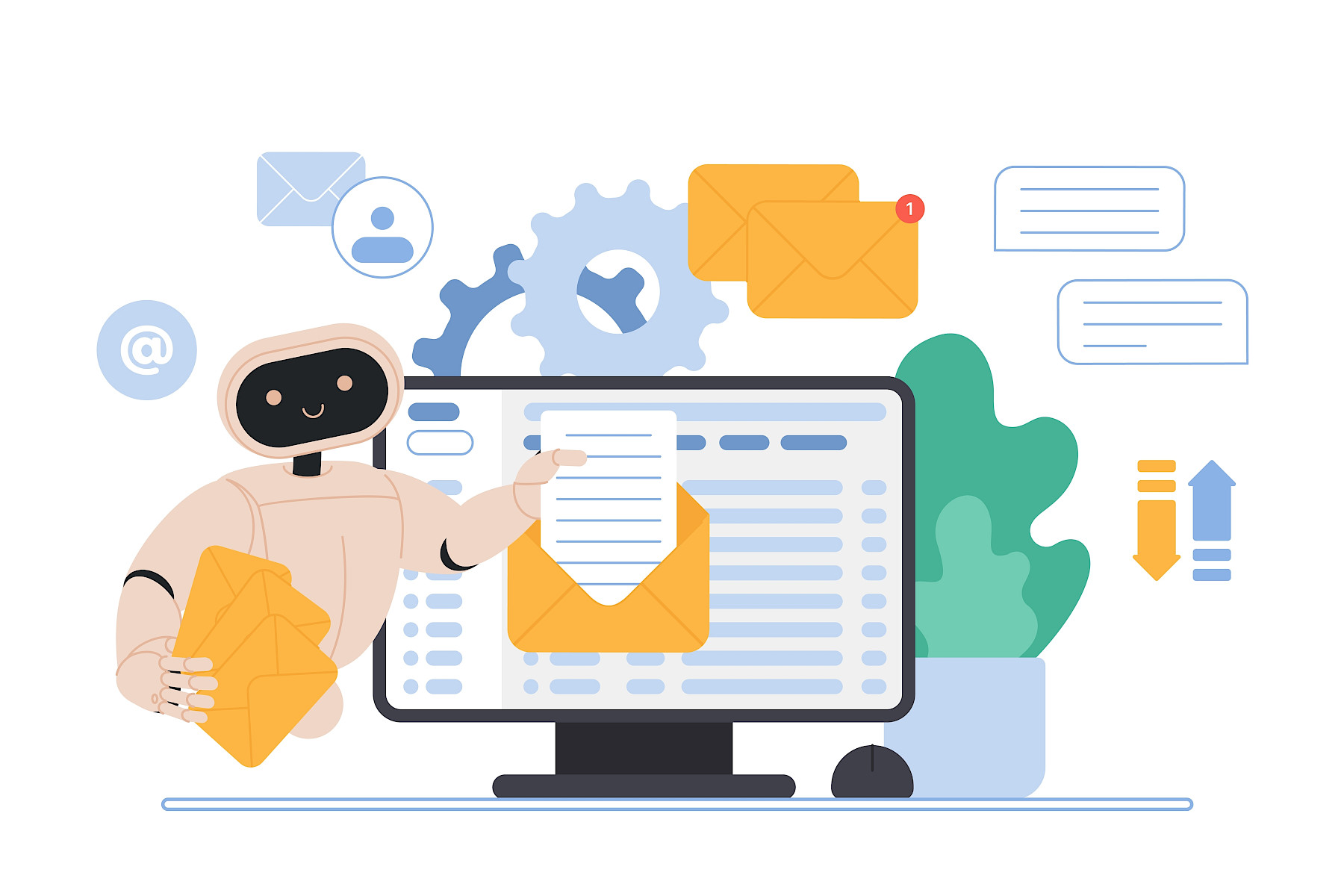
Copilot in Outlook is most useful when people know how to apply it to real work, not when it is treated as a novelty. Used well, it can take real pressure out of email and help teams stay on top of their inbox without spending all day there.
This short guide walks through how to use Copilot in Outlook in ways that actually save time.
Before You Start: Set Yourself Up Properly
Copilot works inside Outlook as part of Microsoft 365. It uses context from your emails, meetings, and files, so the quality of that information matters.
Before relying on Copilot, make sure:
-
Shared inboxes have clear ownership and sensible folder structures
-
Email threads stay in one place instead of being split across forwards
-
Meeting invites and subject lines are meaningful
Copilot will not fix messy habits, but it will reward good ones.
How to Summarise Long Email Threads
One of the quickest wins is using Copilot to summarise long conversations.
How to do it
Open an email thread and select the Copilot option to generate a summary. Copilot will pull out key points, decisions, and outstanding actions.
When to use it
-
You have been copied into a long chain
-
You are returning from leave
-
A conversation has gone back and forth without a clear outcome
Instead of reading every reply, you get a clear overview in seconds.
How to Draft Replies Without Starting from Scratch
Writing emails is where many people lose time, especially when the message needs to be clear, professional, or carefully worded.
How to do it
Select Copilot while replying to an email and ask it to draft a response. You can also guide it by asking for a shorter reply, a more formal tone, or a clearer explanation.
Best practice
Treat Copilot’s output as a first draft. Read it, adjust the wording, and make it sound like you. This keeps communication human while removing the hard work of getting started.
How to Improve Clarity and Tone
Copilot is useful not just for writing emails, but for improving ones you have already drafted.
How to do it
After writing an email, use Copilot to rewrite it for clarity, conciseness, or tone. This is particularly helpful for sensitive messages or client communications.
For teams where email confidence varies, this can quickly raise the overall standard of communication.
Example: Handling a Complex Client Thread
Imagine you come back from a few days off to find a 20-message email thread with a client, involving multiple colleagues.
Without Copilot
You scroll through the chain, try to work out what has already been agreed, and risk missing a key detail before replying.
With Copilot
You ask Copilot to summarise the conversation. It highlights:
-
What the client is asking for
-
What has already been agreed internally
-
What still needs a response or decision
You then ask Copilot to draft a reply confirming next steps. After a quick edit, you send a clear, confident response in minutes rather than half an hour.
Security and Access Still Apply
Copilot does not bypass security.
It only uses information you already have permission to see and operates within your organisation’s Microsoft tenant. Because it is part of Microsoft’s ecosystem, it follows the same compliance and data protection rules your business already relies on.
Making Copilot Part of Everyday Work
Copilot delivers the most value when it becomes part of normal routines, not something people use once and forget.
We recommend:
-
Using summaries as the default for long threads
-
Drafting first responses with Copilot, then refining
-
Encouraging teams to share prompts and examples that work well
Small changes in behaviour lead to meaningful time savings.
How Maple Supports Copilot Adoption
At Maple, we help organisations across London turn Copilot into a practical tool, not just another licence. That means making sure Microsoft 365 is structured properly and users know how to apply Copilot to real scenarios.
Copilot in Outlook works best when the foundations are right and people understand how to use it confidently. When that happens, email becomes easier to manage and far less disruptive.
Your end-of-week security check